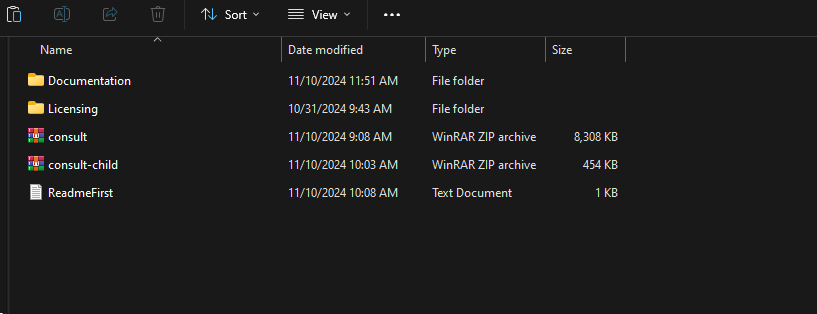
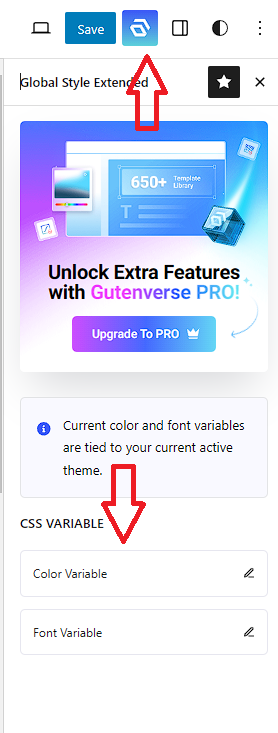
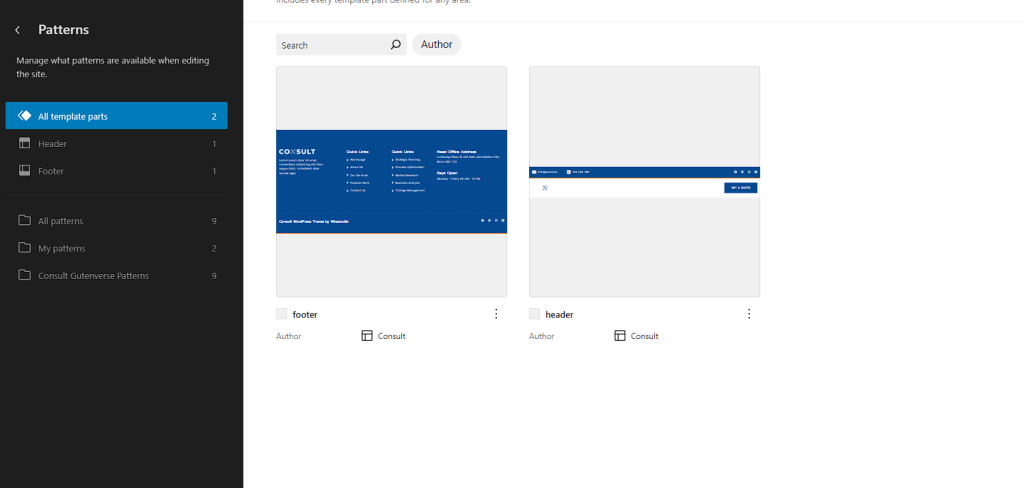
Once the theme demo is set up, you can start importing pages either all at once or individually. This is useful if you want to customize certain pages or avoid importing unnecessary ones.
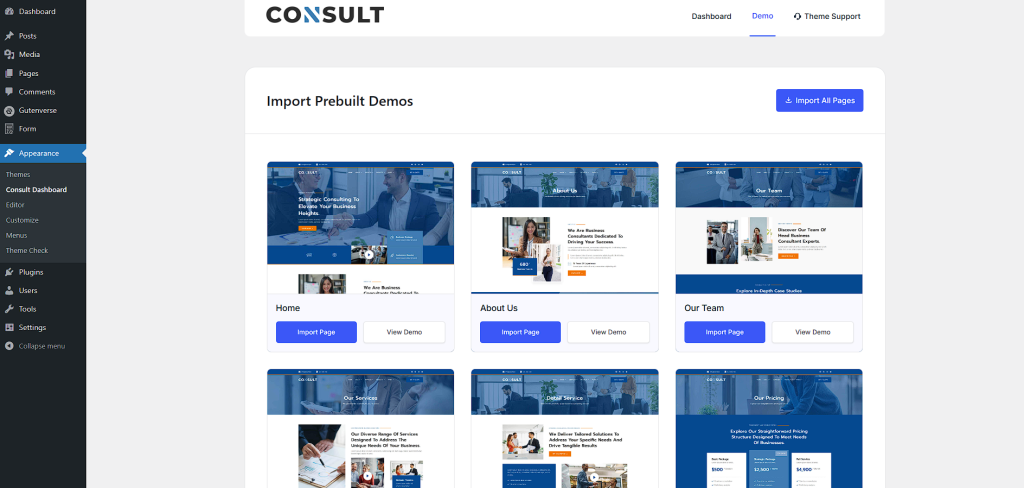
- Navigate to Import Demo Data:
- Go to Consult Dashboard in the WordPress Admin sidebar.
- Find the Demo Menu on top section
- Click Import All Pages:
- There will be an option like Import All Pages or Import Demo Content.
- Click this button, and the theme will automatically import all the demo pages and related content.
- This process may take several minutes, depending on the size of the demo content and your server speed.
- Wait for the Import to Complete:
- After the process completes, you should see a success message.
- All demo pages will be available on your website.
- Review Your Site:
- Visit the front-end of your website and review the imported pages. You can now customize the pages as needed.
If you prefer to import only specific pages, follow these steps:
Steps
- Navigate to Import Demo Data:
- Go to Consult Dashboard in the WordPress Admin sidebar.
- Find the Demo Menu on top section.
- Choose the Pages You Want to Import:
- The dashboard will display a list of available demo pages such as Home, About, Services, Blog, Contact, etc.
- Select the individual pages you wish to import by clicking the Import button next to each page name.
- Click Import:
- The selected page will be imported.
- Repeat for Other Pages (Optional):
- Repeat this process for any other pages you want to import individually.
- This allows you to only import the pages that are most relevant to your website.
- Review Your Site:
- Once the pages are imported, visit the front-end of your site to review the individual pages.